Fax App for Slack
Integrate your Fax.Plus account with your Slack workspace and get notified of received faxes and the status of your sent fax.
You can also configure the app to attach received faxes in the Slack message. Available on Business and Enterprise plans.

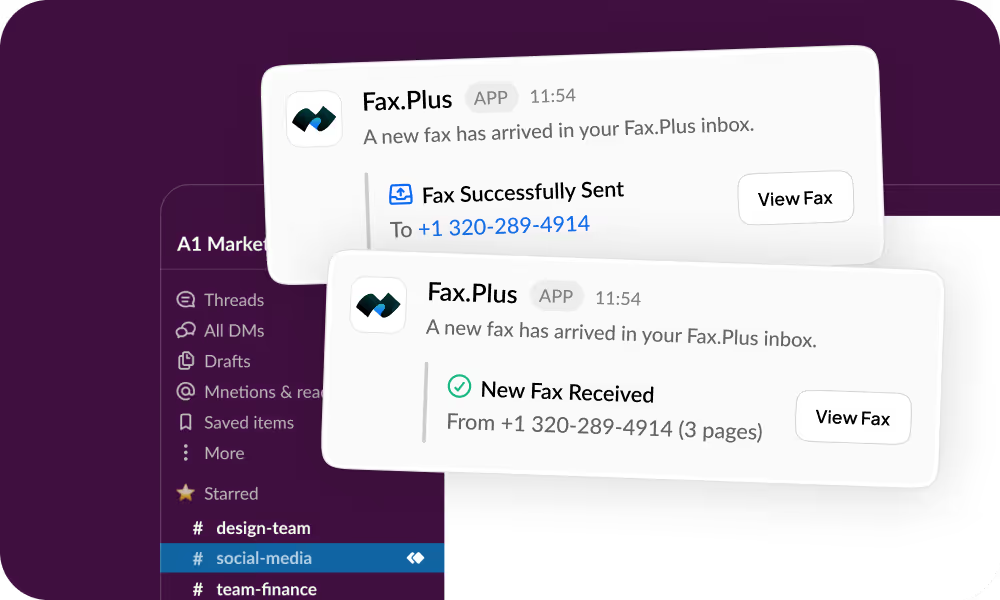
Get your fax right in Slack
An account Owner or Admin connects Fax.Plus to your Slack workspace. Each team member can then choose a channel or direct message for fax notifications, with optional document attachments.

Fax.Plus functionality with Slack
Receive faxes in Slack
Get an alert when a fax arrives. Include the fax file in the Slack message when your account settings allow it, or leave the document in Fax.Plus.
Follow delivery updates
Receive status updates for faxes sent through Fax.Plus, so your team can follow the transmission result from its Slack workspace.
Choose your destination
Choose a channel or direct message for your own fax notifications. Add the Fax.Plus app to the selected channel so updates can reach it.
How to connect Fax.Plus to Slack
Connect your workspace once, then choose where and how fax updates appear.
Activate the integration
As a Fax.Plus Owner or Admin, open Settings in the web app. Select Integrations, find Slack and choose Activate. Follow the Slack authorization prompts.
Set your notifications
In Fax.Plus Settings, open Faxing and edit Notifications. Modify the Slack settings, choose a channel or direct message, and select received-fax and sent-fax notifications.
Add the app to your channel
For channel delivery, add Fax.Plus through the Slack channel settings under Integrations, including private channels. Then return to Fax.Plus to choose whether to attach fax files and save your notification preferences.
Choose how faxes appear in Slack
Use attachments for document access in Slack, or keep the files in Fax.Plus and receive alerts only.
Open the fax in Slack
With attachments enabled, your team can find and share fax files in Slack, subject to your workspace permissions and account settings.
Keep files in Fax.Plus
Receive fax notifications in Slack without attaching the document. Your fax files remain in the Fax.Plus archive for access through your account.
FAQ
Which Fax.Plus plans include Slack integration?

The Slack integration is available on Business and Enterprise plans. An account Owner or Admin installs it for the workspace; members can then configure their own notifications.
How do I send a fax and follow it in Slack?
Prepare and send your fax through Fax.Plus, then follow its status through Slack notifications. The native Slack integration brings incoming-fax alerts, optional fax attachments and sent-fax status updates into your workspace.
Why are fax notifications not appearing in my channel?
Confirm that your account administrator has activated the Slack integration, the intended destination is selected in your Fax.Plus notification settings, and the Fax.Plus app has been added to that channel. Private channels also need the app added.
Can I receive fax notifications without attachments?
Yes. Choose notifications only in your Slack notification settings. You receive alerts in Slack while the fax files stay in your Fax.Plus archive.
Can I use Slack fax notifications for patient documents?
For HIPAA-protected faxes, Fax.Plus requires an Enterprise account, a signed BAA and enabled Advanced Security Controls. With ASC enabled, Slack notifications do not include fax-file attachments. Your organization must separately assess Slack eligibility, agreements, channel access and the information present in notifications.
Explore more fax workflows
Connect faxing to other workplace apps, build an automated workflow, or review the requirements for patient-related alerts in Slack.
Team workflows
Fax automation
Document tools
Connect fax updates to Slack.
Create a Fax.Plus account, choose a Business or Enterprise plan, and bring incoming-fax alerts and sent-fax status updates into your Slack workspace.
Partner with us!


Confédération Suisse
Confederazione Svizzera
Confederaziun Svizra
Swiss Confederation
Innosuisse - Swiss Innovation Agency